Get started
How Soccer Stats works
A soccer stats tracker should get out of the way — the steps below are the same whether your family says soccer or football. Here is the fastest path from first visit to first logged match.
Step 1
Open the app
Tap Open app from any page. Create a player profile in Kid Mode (60-minute defaults) or Adult Mode (90-minute defaults) — same full stats UI. Add more profiles later for siblings or your own games.
Step 2
Log a match in under two minutes
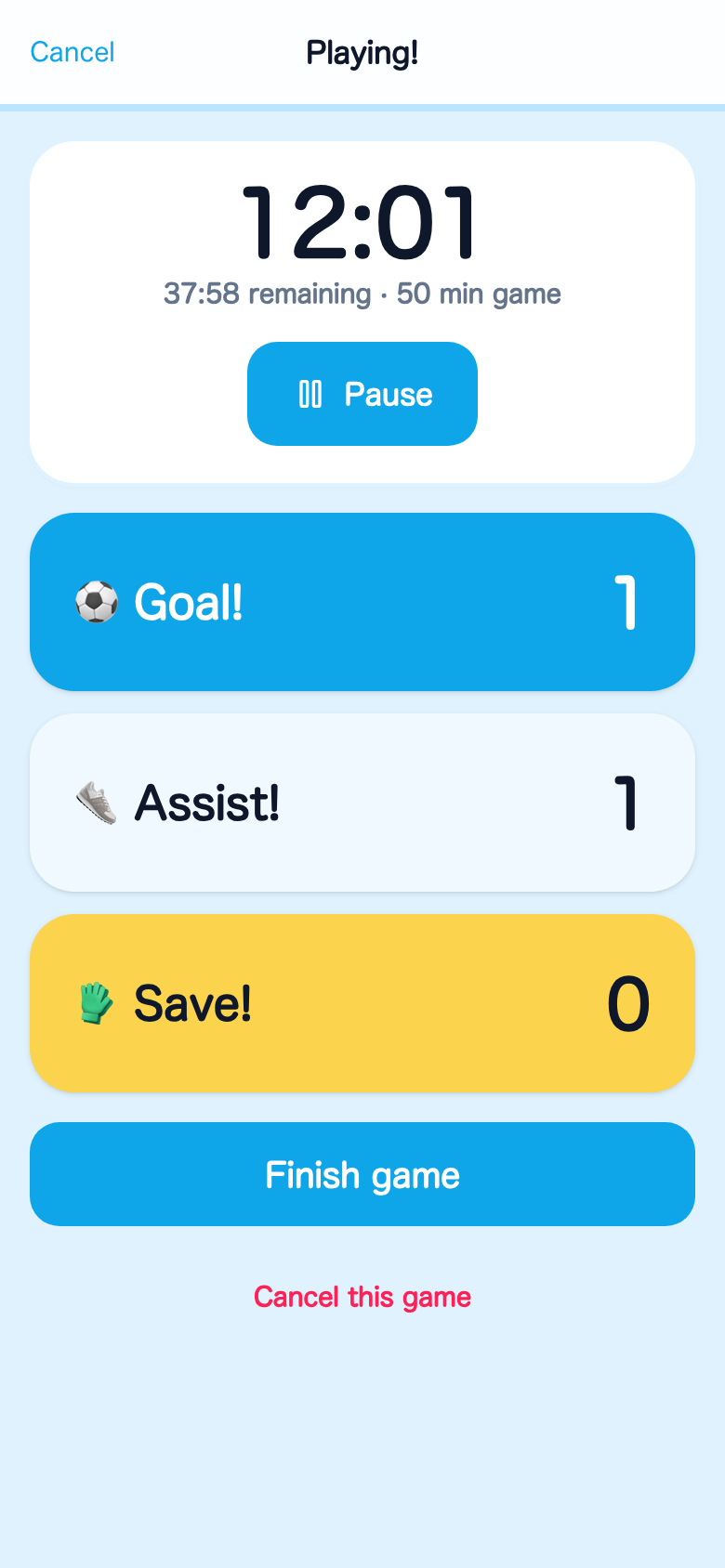
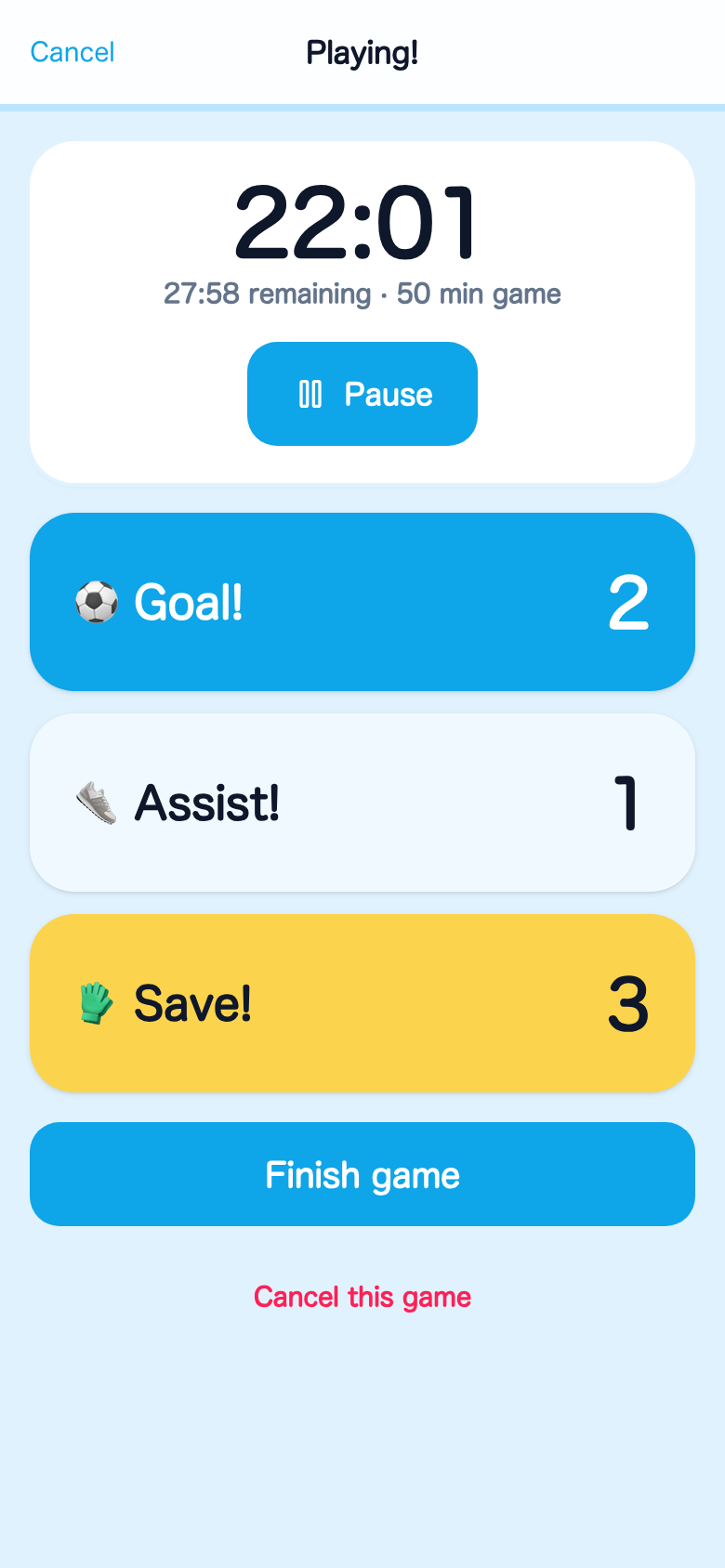
After the whistle — or live during the game — capture opponent, result, match length, minutes played, goals, assists, and saves. Youth game lengths stay honest because every match stores its own length.
Step 3
Build the season story
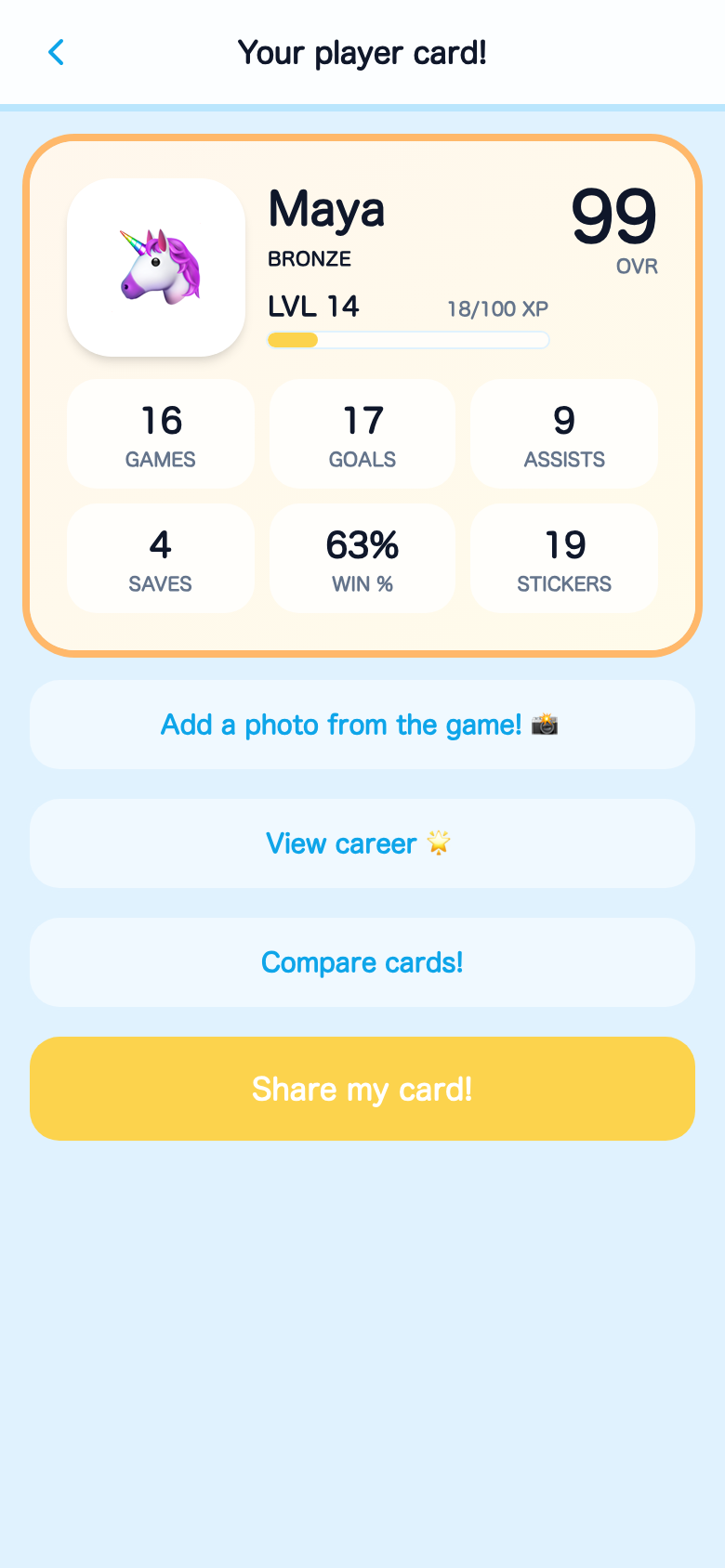
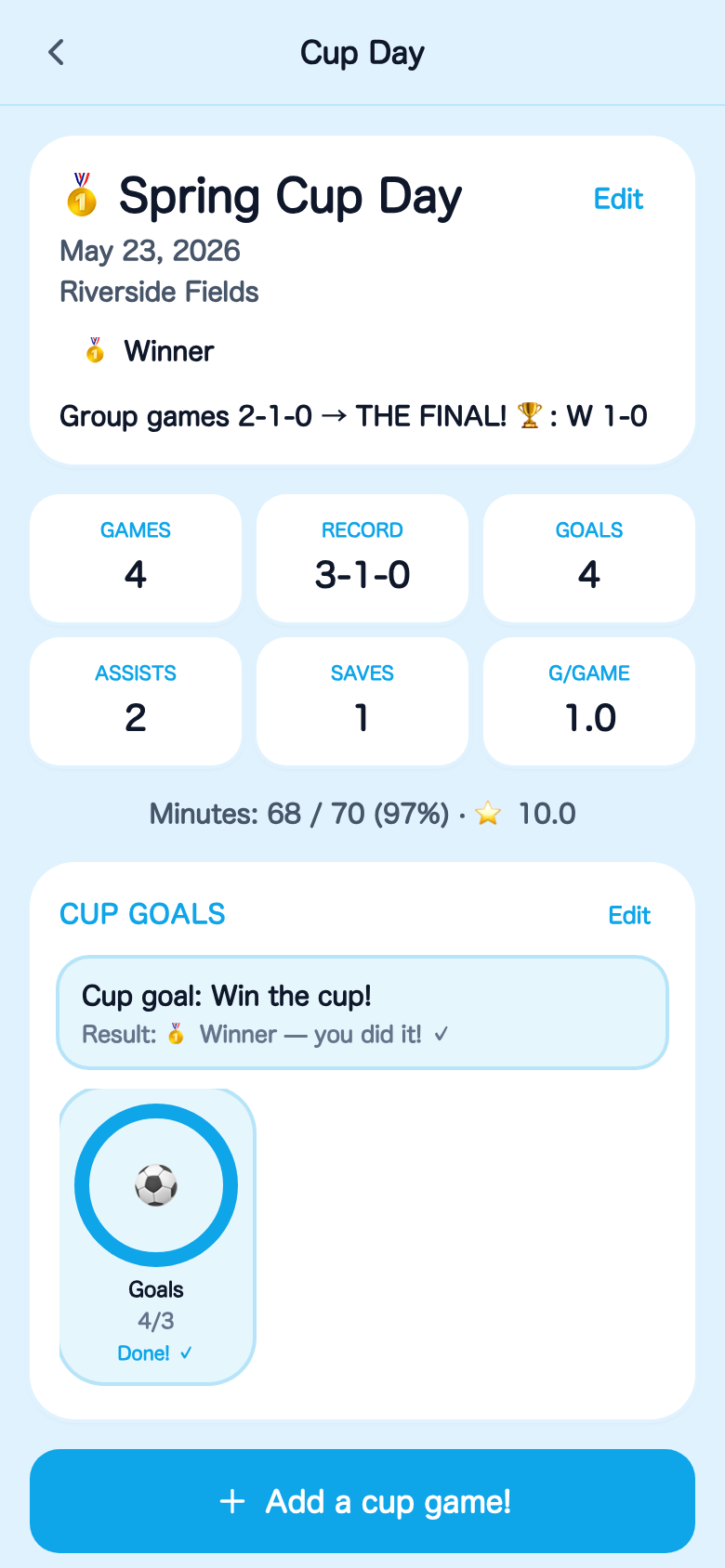
Group league games into seasons and tournament weekends into Cup Days. Review the dashboard, player card, charts, rivalries, and Season Wrapped in either mode.
Works at the field
Soccer Stats is an installable progressive web app. After the first visit it can work offline, so a weak sideline signal does not block logging. Add it to your Home Screen so it is there on match day — no app store.